 Back to Blog
Your VPS slows down at 02:00. A service has restarted, the log is hundreds of lines long, and the cause is not obvious. An AI assistant can turn that evidence into a short diagnostic plan in seconds. The dangerous leap is assuming that the same assistant should also receive unrestricted root access and fix production on its own.
The useful model is AI-assisted, human-approved server administration. Monitoring detects the problem, AI helps interpret the evidence, and an accountable person decides what changes. That distinction makes AI valuable without turning a plausible but wrong answer into downtime.
Where AI is genuinely useful
AI works best when a task has clear evidence, a limited scope and an outcome you can verify. It can save time on routine analysis and help administrators understand an unfamiliar system.
- Summarise a narrow window of service logs and build an incident timeline.
- Explain a command, configuration directive or error message before you act.
- Compare a working and broken configuration and highlight meaningful differences.
- Correlate CPU, memory, disk and network pressure with application symptoms.
- Prepare a script, systemd unit or Ansible change for review.
- Write a rollback plan and a verification checklist.
It is much less suitable as the final authority for destructive or ambiguous work. Disk changes, firewall replacement, authentication changes, database migrations, package removal and recovery operations can cause downtime or data loss even when the generated command is syntactically correct.
Choose the right level of AI access
There are three practical operating modes. Start with the least access and move to a more capable model only when the benefit justifies the additional risk.
Advisor. Give the AI a short, sanitised command output or log excerpt. You run every command yourself. This is the safest starting point and is often enough for occasional troubleshooting.
Copilot. Run a terminal AI tool on your administrator workstation. It can inspect a local configuration repository and prepare SSH commands or file changes, while you approve actions before they reach the VPS.
Restricted agent. Let the tool connect under its own unprivileged server account. This can support repeatable diagnostics, but its SSH key, file access, groups and network reach must be designed as carefully as those of any human operator.
The server account—not the model’s promise to be careful—is the real security boundary. Do not make the agent a member of sudo, docker or another group that effectively grants root access unless you have a narrowly defined and audited reason.
Set up a safe AI workflow
Install the assistant away from production
For most teams, the cleanest design is to install the terminal assistant on an administrator workstation or controlled management host, not directly as root on the production VPS. Two current examples are Codex CLI and Claude Code; verify any installer against the vendor’s current documentation before running it.
Codex CLI: installation documentation
curl -fsSL https://chatgpt.com/codex/install.sh | sh
codex
Claude Code: setup documentation
curl -fsSL https://claude.ai/install.sh | bash
claude
Do not run either installer as root. Review your organisation’s software-approval and data-handling requirements, then begin with an instruction that explicitly prohibits changes:
This is a production VPS. Begin in read-only mode.
Do not use sudo, modify files, install packages,
restart services, change the firewall or expose secrets.

First show the commands you intend to run.
Explain what each command checks and identify every
action that would require human approval.
Give the agent a separate Linux identity
If the assistant must connect over SSH, create a dedicated account and key. The following Debian or Ubuntu example creates an account without password login and allows journal reading without sudo:
sudo adduser --disabled-password --gecos "" aiops
sudo install -d -m 700 -o aiops -g aiops \
  /home/aiops/.ssh
sudoedit /home/aiops/.ssh/authorized_keys
sudo chown aiops:aiops \
  /home/aiops/.ssh/authorized_keys
sudo chmod 600 /home/aiops/.ssh/authorized_keys
sudo usermod -aG systemd-journal aiops
Paste only the dedicated public key into authorized_keys and keep its private key on the approved management workstation. Logs can contain URLs, tokens, email addresses or customer data, so journal access should be granted only when it is genuinely needed.
Before using a new account in production, follow the EDIS Global SSH security hardening guide and test the new login in a second terminal before closing your existing administrative session.
Let monitoring detect; let AI interpret
AI should not be the component that decides whether your server is alive. Conventional monitoring is deterministic, repeatable and able to alert when the VPS itself is unreachable. Run at least one availability check outside the server.
A practical stack can combine systemd and journald for service state, an external HTTP or TCP monitor for availability, Netdata for a quick single-server view, or Prometheus Node Exporter and Grafana for longer-term metrics. Git and Ansible make configuration changes reviewable; an off-server backup tool provides a recovery path.
Prometheus publishes a Node Exporter monitoring guide for collecting host metrics.
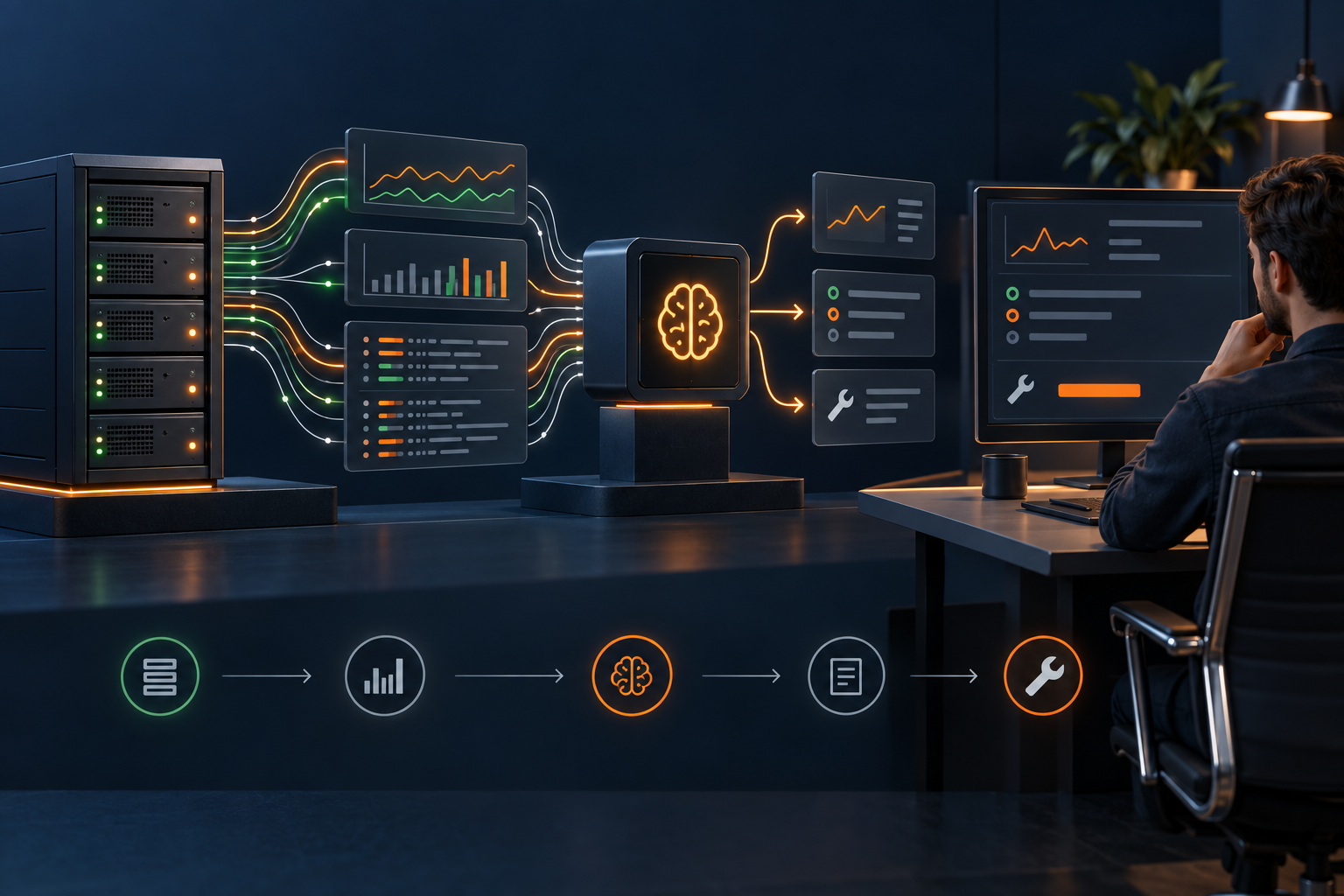
Monitoring collects the signals; AI helps interpret them; a human approves the next action.
Collect a small health snapshot
When an alert arrives, gather a narrow set of read-only facts instead of giving an AI tool unrestricted access to the whole server:
date --iso-8601=seconds
uptime
free -h
df -hT -x tmpfs -x devtmpfs
systemctl --failed --no-pager
ss -s
journalctl -p warning..alert \
  --since '-60 minutes' --no-pager
Review the output before sending it to an external AI service. Remove credentials, authorisation headers, session identifiers, customer data and anything unrelated to the incident. Automated redaction is useful, but it can miss secrets.
Analyse logs without drowning in them
A good investigation starts with the affected service and the incident window. For Nginx, for example:
systemctl status nginx --no-pager
journalctl -u nginx --since '-30 minutes' --no-pager
journalctl -p err..alert --since '-2 hours' --no-pager
Then add context: the operating system, the exact symptom, when it started, the last known change and what evidence is attached. Ask the assistant to separate facts from hypotheses and to request more evidence before recommending a restart.
System: Ubuntu 24.04
Service: Nginx reverse proxy
Application: managed by systemd
Symptom: HTTP 502 responses since 14:20 UTC
Last change: application deployed at 14:05 UTC

Build a timestamped incident sequence.
Rank likely causes and cite the evidence for each.
Identify missing evidence and read-only next steps.
For later changes, include impact, rollback and verification.
Review every AI-proposed change
For every proposed production change, require the exact command or diff, the expected result, possible side effects, a rollback method and a verification test. Configuration stored in Git can be inspected before application:
git status --short
git diff --check
git diff
An Ansible playbook can be checked with ansible-playbook --check --diff, although check mode cannot perfectly predict every module or application side effect. High-risk changes still belong on a staging VPS that resembles production.
Apply the same pattern on Windows VPS
AI-assisted administration is not limited to Linux. PowerShell can produce a focused snapshot for a Windows VPS, which an administrator can review before sharing:
Get-ComputerInfo |
  Select-Object WindowsProductName, WindowsVersion,
    OsLastBootUpTime

Get-Volume |
  Select-Object DriveLetter, FileSystemLabel,
    SizeRemaining, Size

Get-Service |
  Where-Object Status -eq 'Stopped'

$since = (Get-Date).AddHours(-1)
Get-WinEvent -FilterHashtable @{
  LogName='System'
  Level=1,2,3
  StartTime=$since
} |
  Select-Object -First 100 TimeCreated, Id,
    ProviderName, LevelDisplayName, Message
Use a dedicated Windows account with only the permissions required for the diagnostic task. Do not give an AI agent Domain Administrator credentials, unrestricted production secrets or automatic authority to reboot a business-critical server.
Make recovery part of the plan
An AI-generated change can be reasonable and still be wrong for your application. Before allowing direct access, keep backups outside the VPS, test an actual restore, record the current firewall and network configuration, and document emergency access through the management portal or VNC console.
EDIS Global VPS customers remain responsible for their own data and recovery. Review the current backup guidance before introducing an AI agent to an important workload.
A practical operating routine
- Let monitoring detect and timestamp the problem.
- Collect only the affected service state, metrics and log window.
- Remove secrets and unrelated customer data.
- Ask AI to separate facts, hypotheses and missing evidence.
- Run read-only diagnostic commands first.
- Require a proposed diff, impact assessment, rollback and verification.
- Have an accountable administrator approve and apply the change.
- Verify the service from outside the VPS and update the runbook.
AI does not make a VPS managed
AI can shorten troubleshooting and make a small team more effective, but it does not assume operational responsibility. With an unmanaged VPS, you still manage the operating system, applications, access, updates, monitoring, data and recovery.
The best results come from a server that is already manageable: secure access, meaningful monitoring, version-controlled configuration and tested backups. Start with read-only assistance, expand permissions only for a demonstrated need, and keep a human approval step for production changes.
AI-assisted VPS management: frequently asked questions
AI can inspect selected server data, explain commands, analyse logs, prepare configuration changes and document recovery steps. It should assist an accountable administrator rather than become the sole operator of a production VPS.
Not by default. Start with selected information or a dedicated unprivileged account. If direct access is necessary, use a separate SSH key, least-privilege permissions, audit logs and human approval for privileged changes. Avoid unrestricted passwordless sudo access.
The safer pattern is to run a terminal AI tool on an administrator workstation and connect to the VPS over SSH with a dedicated restricted account. The agent can collect read-only evidence and prepare changes; a separate administrator account reviews and applies privileged work.
AI can interpret alerts and correlate metrics with logs, but conventional monitoring should collect data and detect outages. Use external uptime checks and tools such as Netdata, Prometheus or Grafana, then use AI to help diagnose the evidence.
Only after limiting and reviewing the data. Export the shortest relevant time window, remove credentials, tokens, customer data and unrelated entries, and check the AI provider’s data-handling policy before uploading operational information.
No. AI may assist with administration, but the VPS owner still remains responsible for the operating system, applications, access, updates, monitoring, backups and recovery.